


As a Salesforce user or developer, you likely agree that it's one of the most rapidly evolving CRM platforms, offering extensive declarative development (clicks, not code) capabilities and customization options. However, Salesforce's complex ecosystem and integrations can make DevOps practices, such as continuous integration and deployment (CI/CD), challenging and inefficient.
This complexity has driven the emergence of Salesforce-specific DevOps tools, simplifying the intricacies of managing development pipelines. These platforms help organizations automate code deployments and implement CI/CD pipelines, enabling them to release applications quickly and confidently.
This guide explains Salesforce continuous integration from the ground up: what a CI/CD pipeline is, how to build a CI/CD pipeline stage by stage, which continuous integration tools for Salesforce fit which team, how to wire one up with GitHub Actions, and how to decide whether to build your own toolchain or buy one.
What is a Salesforce CI/CD Pipeline?
Before defining the individual pieces, it helps to see how they fit together. Salesforce DevOps is the broad discipline: the culture, processes, and tooling a team uses to plan, build, test, and release changes to an org. Continuous integration, continuous delivery, and continuous deployment are specific practices inside that discipline, and a CI/CD pipeline is the automation that carries them out. Deployment automation is the mechanism the pipeline uses to move validated metadata between environments.
Put simply: DevOps is the strategy, CI/CD is the practice, and the pipeline is the machinery. Each layer depends on the one above it. Automating deployments without a source of truth in version control just makes bad changes travel faster.
That machinery matters more in Salesforce than in most platforms because of how much complexity teams are managing. In the 2024 SF Ben Developer Survey, 53% of Salesforce developers agreed that the platform is becoming increasingly complex to work with, while 34% were neutral and only 13% disagreed. With its scale of features, customizations, and integrations, Salesforce can quickly become overwhelming. Those options are great for flexibility, but they also make development, testing, and deployment more complicated than they need to be.
That's where a Salesforce CI/CD pipeline comes in. A CI/CD pipeline automates the process of building, testing, and deploying your changes, helping you move faster and with fewer headaches.
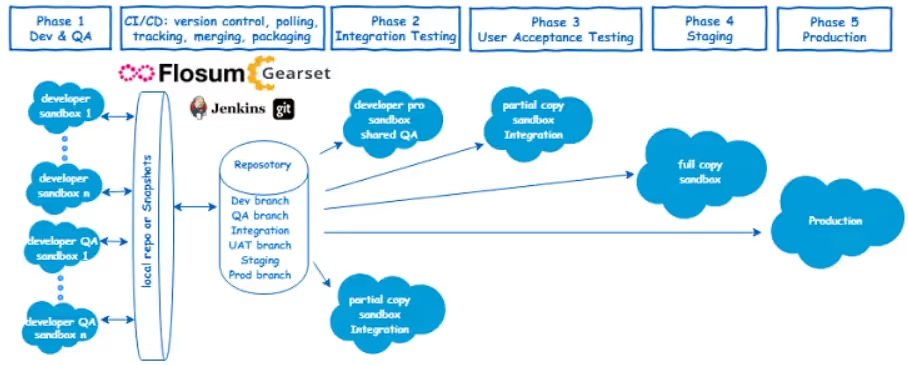
Instead of manually deploying changes every time, the automated pipeline handles it all for you, so you can focus on building new features or fixing bugs instead of worrying about how to get them into production.
With a CI/CD pipeline, you can address issues like slow development, code conflicts, and constant bugs, while improving release velocity, faster code merging, fewer code overwrites, and easier branch management.
The Salesforce CI/CD pipeline consists of three practices that work together to make the pipeline run smoothly: Continuous Integration (CI), Continuous Delivery (CD), and Continuous Deployment.
What is Continuous Integration?
Continuous Integration (CI) is the practice of merging every change into a shared repository frequently, then automatically validating it. In general software development that means compiling code and running unit tests. In Salesforce, continuous integration has to account for something most CI tutorials never mention: most of what you are integrating is not code at all. It is metadata.
Profiles, permission sets, flows, page layouts, validation rules, and custom objects are all XML metadata, and much of it is produced by admins clicking through Setup rather than developers writing code. Salesforce continuous integration therefore rests on three things working together.
First, version control has to capture declarative work as well as programmatic work. If an admin changes a validation rule directly in a sandbox and that change never reaches a branch, the pipeline cannot see it, and it will be silently overwritten by the next deployment.
Second, validation replaces compilation. Salesforce gives you a validation-only deployment, which runs the full deployment against a target org and reports what would happen without committing anything. That is the closest equivalent to a build step, and it is where most Salesforce CI pipelines catch problems.
Third, Apex tests carry a hard platform requirement rather than a team preference. Salesforce requires at least 75% code coverage org-wide to deploy Apex to production, so test execution is a gate you cannot opt out of.
The goal stays the same as in any CI process: changes should function as expected and integrate cleanly with what already exists. CI catches issues early so teams get feedback quickly, which means less manual testing and fewer surprises later.
Operational takeaway: continuous integration turns integration problems into small, same-day fixes instead of release-week emergencies.
What is Continuous Delivery (CD)?
Continuous delivery is a development practice that automatically moves the tested code through various testing and staging environments. In the case of Salesforce, various Salesforce sandbox environments avoid deployment challenges when it is released.
The practice picks up after CI and ensures that there is always a deployment-ready feature or functionality in the pipeline. For instance, after successful testing and merging of code in CI, the CD pipeline automates the deployment to a staging environment. The changes undergo UAT (User Acceptance Testing) and integration tests with other systems at the staging environment.
It helps avoid long release cycles and ensures the organization can release new features, updates, and bug fixes frequently without causing post-production issues.
What is Continuous Deployment?
Continuous deployment is a development practice in which code changes are automatically deployed for testing and to the production environment without manual intervention. Its deployment automates the entire workflow, from developing applications, code merging, or bug fixes to testing and pushing them for release into production. There is little human intervention in the process.
For example, when improving a new feature in Salesforce with continuous minor tweaks, performance improvements, and bug fixes, continuous deployment automates the entire process from development to production deployment. Once verified, every code change committed, tested, and approved in staging to improve the features will automatically deploy to the production environment.
With Continuous Deployment in Salesforce, small, validated changes go live instantly. This process keeps production up-to-date and helps developers respond to issues rapidly. It also helps maintain a consistent, high-quality Salesforce environment for end-users. Unlike Continuous Delivery, where the release to production is manual, in Continuous Deployment, code changes to the production environment are automatically released.
How to Build a CI/CD Pipeline
Before looking at any specific tool, it is worth understanding the architecture every CI/CD pipeline shares. Whether you build it with Jenkins, GitHub Actions, or a Salesforce-native platform, the same six stages appear in the same order, and each one exists to catch a class of failure the previous stage cannot.
Source control is the foundation. Every change lands in a branch before it moves anywhere, which gives you history, attribution, and the ability to compare intended state against actual state. Without this stage, nothing downstream has a reference point.
Automated testing runs next, triggered by the commit or the pull request. In Salesforce this means Apex unit tests, and increasingly static analysis that inspects metadata for policy violations that tests would never surface, such as a profile granting Modify All Data.
Validation is the stage most general CI/CD guides omit, and it is the one Salesforce teams cannot skip. A validation-only deployment runs the real deployment against the real target org and reports the result without committing the change. It catches missing dependencies, field references that do not exist in the target, and profile conflicts, which are the failures that unit tests never see.
Deployment promotes the validated change to the target environment. The key design decision is whether promotion to production is automatic (continuous deployment) or gated behind a human approval (continuous delivery). Most enterprise Salesforce teams gate production.
Monitoring confirms the deployment did what it was supposed to do, which means watching error rates, failed jobs, and user-reported issues in the hours after release, not just checking that the status said Succeeded.
Rollback is the stage teams skip until the first time they need it. Salesforce does not version your org for you, and redeploying a previous commit only reverts metadata, not the data that referenced the new schema. A real rollback plan depends on a pre-deployment backup snapshot you can restore from.
Each stage assumes the one before it succeeded, so a pipeline missing validation fails at deployment, and a pipeline missing rollback fails at recovery. For a deeper walkthrough of what breaks in production and how to design around it, see our guide to building CI/CD pipelines that hold up under real release pressure.
Operational takeaway: designing all six stages up front is what makes releases predictable rather than eventful.
5 Benefits of CI/CD Pipeline in Salesforce Development
In Salesforce, speed and reliability are essential for faster development and deployment. CI/CD boosts development efficiency, ensures high-quality code, and enables seamless, risk-free releases.
With automation at every stage, teams can deliver updates faster and more confidently, keeping Salesforce aligned with business demands.
Here are a few vital benefits of using the CI/CD pipeline in Salesforce development.
1. Faster go-to market
With a CI/CD pipeline, you can accelerate the delivery of Salesforce projects, even with the platform's inherent complexities. Each stage (UAT, staging, and production) includes automated testing and validation steps. After the code is built, it is tested and verified against predefined quality benchmarks. If issues arise, they are flagged early, preventing faulty builds from progressing. This ensures only stable, working builds advance from UAT to staging and the production environment.
2. Get faster, continuous feedback
With CI/CD allowing parallel testing, you get faster, continuous feedback for your code right from the beginning. This means you do not have to wait for long development cycles to get feedback on your code, make necessary changes, and ensure the latest work complies with Salesforce's capabilities and features without issues.
3. Improved productivity
Using extensive integrations and customizations on Salesforce's platform, you can make your releases more predictable in Salesforce with CI/CD. As new functionalities or features get tested, your team knows what's coming and can move ahead with the next ones. This can immediately improve your team's productivity as they know what resources need to be allocated and for how long. It also avoids confusion and helps remove inefficient processes.
4. Better code quality and quality control
CI/CD helps ensure better product quality and data validity while complying with the Salesforce platform. As Salesforce CI/CD enables early test runs (promotes shift left testing), any issue can be easily identified and rectified in the staging or UAT environments before causing severe problems in production where it is costlier to fix. This leads to a more reliable Salesforce platform with fewer disruptions to business operations.
5. Improved collaboration
CI/CD in Salesforce makes teamwork smoother and more efficient. Developers can work on multiple features at the same time without clashes, thanks to version control systems. Automated testing and code integration provide instant updates on changes, keeping everyone on the same page. It also defines the role of each developer and team, reducing the chances of one's work encroaching upon another's. This clear visibility helps developers, admins, and testers communicate better, avoid delays, and get more done together.
Operational takeaway: these benefits compound, because each one removes a reason releases get delayed or rolled back.
How to Build CI/CD Pipeline in Salesforce with Flosum?
Salesforce-native CI/CD differs from general software CI/CD in ways that matter for tool selection. In a typical web application, the pipeline builds an artifact and ships it to infrastructure you control. In Salesforce, there is no build artifact in the same sense: the pipeline moves metadata between long-lived orgs that already contain configuration, data, and users. Those orgs drift apart over time, admins change things outside the pipeline, and metadata like profiles behaves differently depending on what exists in the target.
That difference is why generic CI tooling often needs heavy scripting to work well with Salesforce, and why platforms built for the metadata model handle the same work with less custom code.
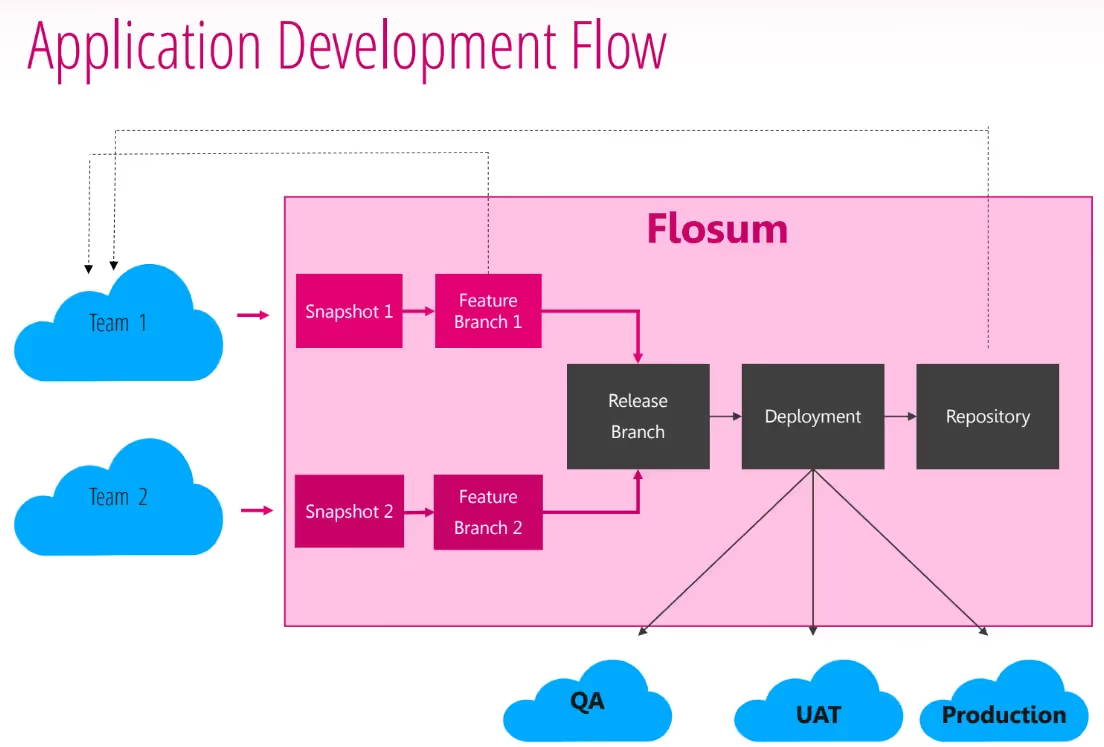
Flosum is an end-to-end enterprise DevSecOps platform purpose-built for Salesforce. Flosum DevOps offers three deployment options: Salesforce-native, which runs inside the org and uses native version control with flexible branching; cloud, which uses Flosum's proprietary metadata-aware version control; and customer-hosted, for regulated or sovereignty-sensitive environments. None of the three require Git. If your team already uses Git, or your engineering organization mandates it, Flosum integrates with Git and enhances how it handles Salesforce metadata.
With dynamic CI/CD pipelines, you can automate operations such as validations, deployments, rollbacks, and overwrite protection through a sequence of steps. Each operation runs in order, including steps that depend on the success or failure of prior steps. The pipelines allow you to choose specific tests, include tests, or run all tests as needed.
Let's explore how to build a CI/CD pipeline in Salesforce with Flosum.
Stage #1: Create CI/CD Pipeline in Flosum
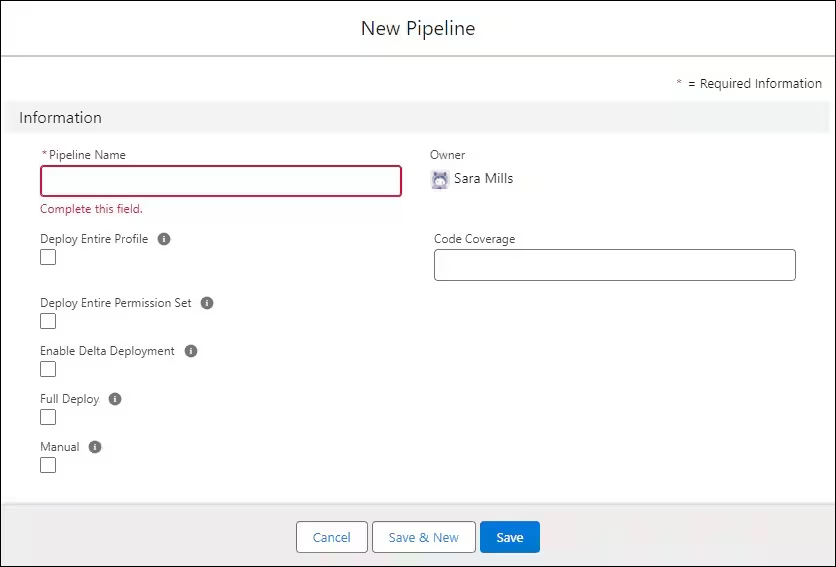
- Go to the Home screen on Flosum.
- Click the Pipelines tab to open the Pipelines.
- Click New.
- Name your Pipeline.
- Check the corresponding box as per your pipeline requirements. Check the box to deploy an entire profile, deploy the entire permission set, enable delta deployment to deploy only components not yet deployed to your target organization, or full deploy to deploy all components on a branch (for branch deployments only, not repository deployments). Check Manual when you want the pipeline to run only on clicking Run Pipeline. If you try to run the pipeline on a merge while this box is checked, the pipeline will not run.
- Enter a percentage of code coverage required for your branch.
- Click Save.
Enabling delta deployment does not work with destructive changes. You can address this by going to Flosum's Settings, then Deployments, then Ignore Warnings on Deployment. Delta deployment does work on both manual and scheduled pipelines.
Stage #2: Add Pipeline Steps
To add pipeline steps, click New from the Pipeline Details screen near Pipeline Steps.
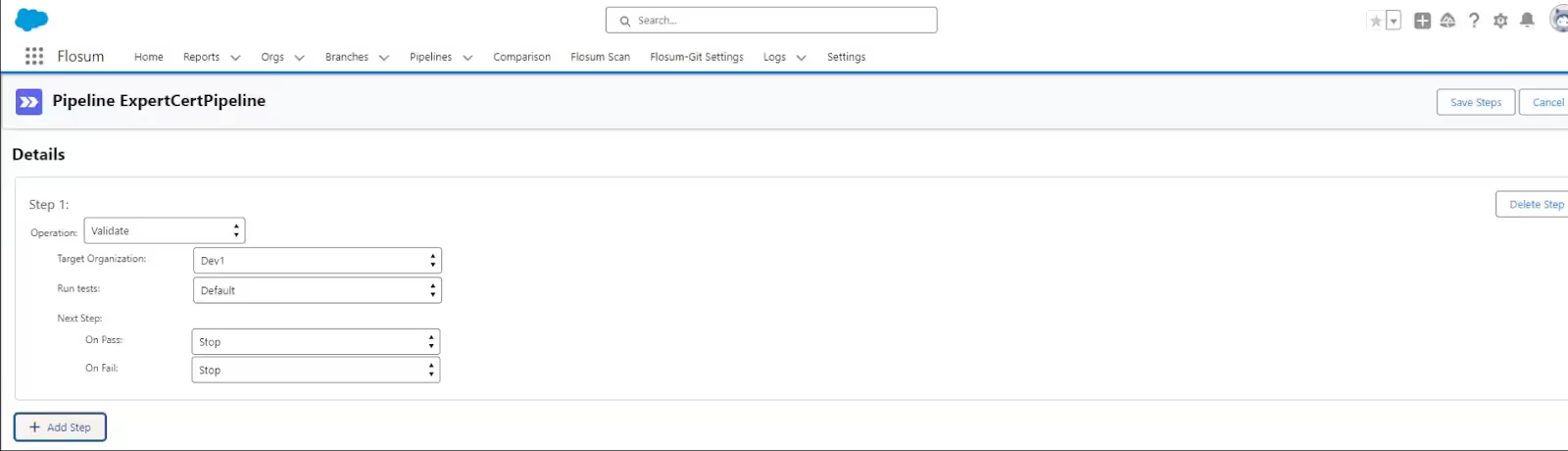
- Click Add Step.
- For your operation, pick the one you want to run.
- For your Target Organization, pick your target organization's name.
- Choose the type of test you would like to run.
- Based on your chosen operation, add additional details as may be needed.
- Click Add Step to open the second step in the pipeline.
- Go back to Step 1. Under the Next Steps section, choose Step #2 for On Pass.
- Go back to Step 2. Choose the second operation your pipeline must perform.
- Pick your Target Organization.
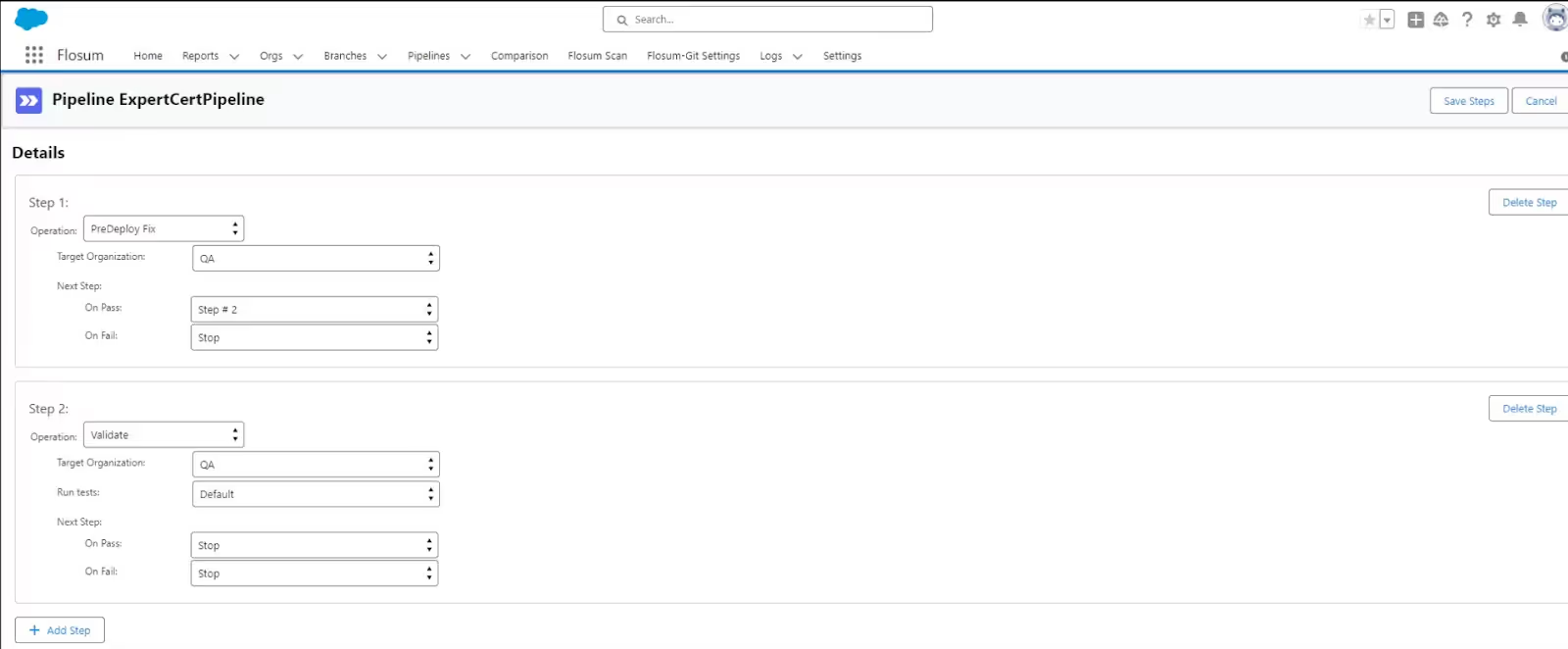
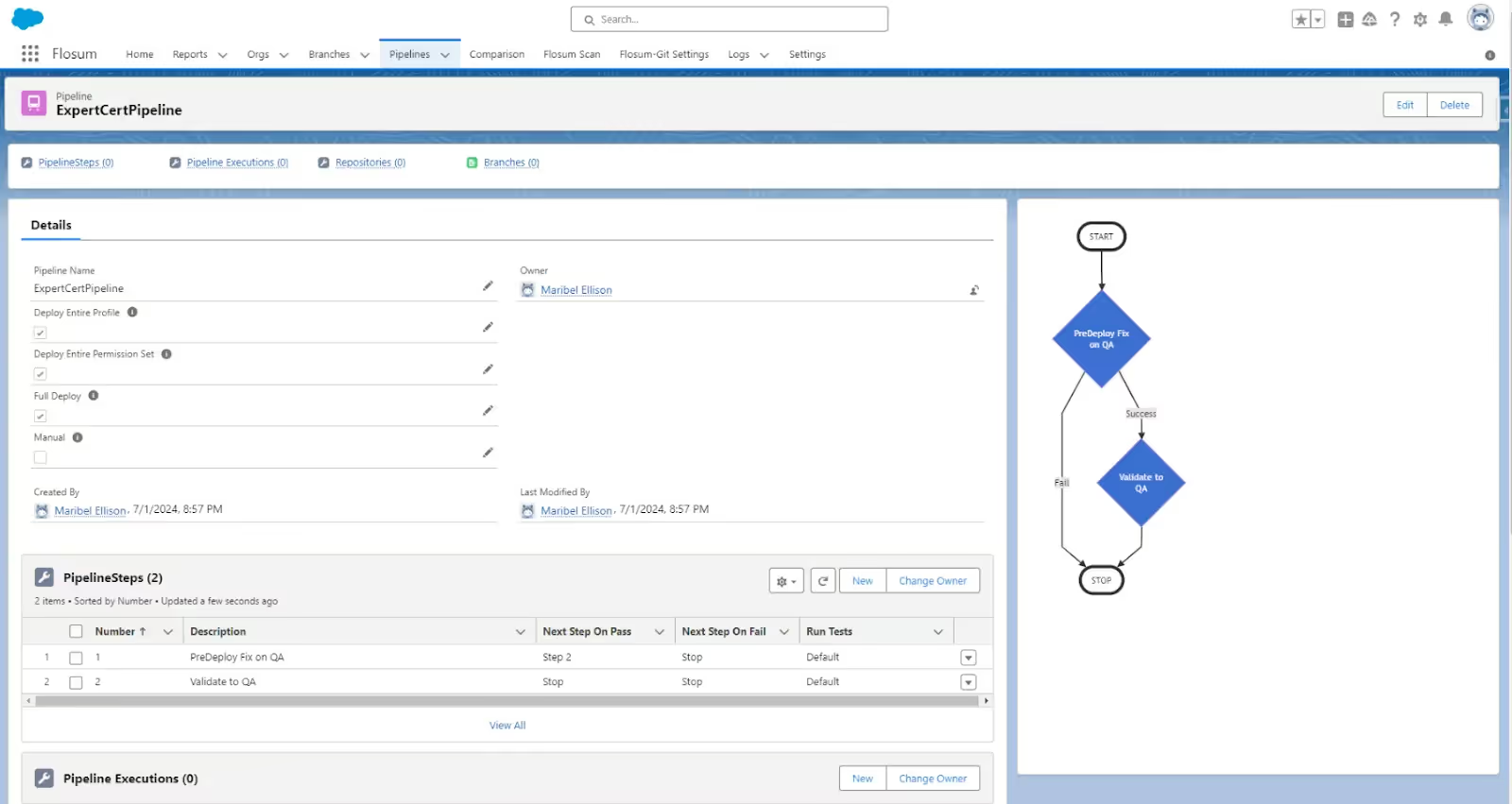
Repeat this until you finish all the steps to execute the chosen operation, then click Save Steps from your screen's upper right-hand corner. You will be directed back to the pipeline screen, where the right-hand column shows a flowchart explaining the pipeline you just created.
Stage #3: Execute a Pipeline
Executing a pipeline from Flosum is quick and easy. Here is how you can do this.
- Click the Branches tab from your Flosum Home screen.
- Choose the B1 branch.
- Click Run Pipeline. Based on the number of buttons you see, you may need to scroll down to reach the Run Pipeline button.
- Enter the name of the pipeline you created.
- Click Run Pipeline and wait until the screen redirects you.
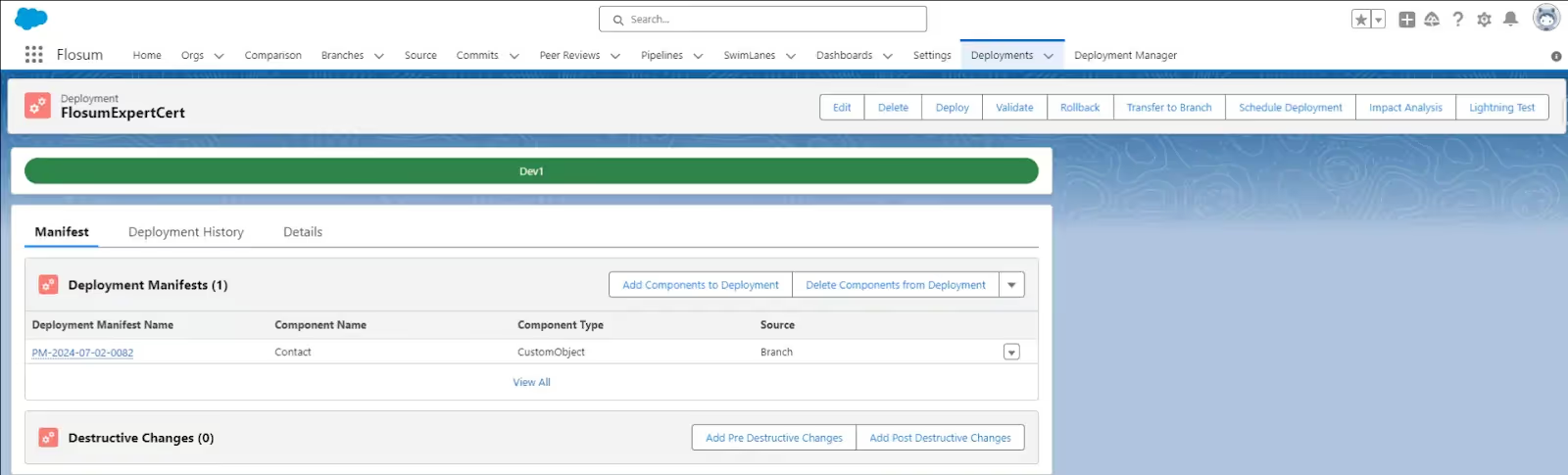
Flosum creates a backup whenever you run a pipeline. After the pipeline execution, you will receive an email about it. The result of the pipeline execution can also be seen from the Branches tab.
Operational takeaway: a pipeline that snapshots before every run turns rollback from a rebuild into a restore.
Continuous Integration Tools for Salesforce
Most teams end up choosing between five broad options, and the right answer depends less on features than on who maintains the pipeline and how much Salesforce-specific behavior you want the tool to understand for you.
Salesforce DX and the Salesforce CLI are the foundation everything else builds on. The sf CLI is free, scriptable, and required knowledge for any custom pipeline, but it is not a CI system by itself: it provides the commands, and you supply the orchestration.
The practical question is not which tool is best but who is going to maintain the pipeline. A general-purpose CI system such as GitHub Actions, Azure DevOps, or Jenkins gives you flexibility and expects you to supply the Salesforce expertise. A Salesforce-native DevOps tool supplies that expertise and expects you to work within its model.
Operational takeaway: choose the tool that matches your team's maintenance capacity, because an unmaintained pipeline fails exactly when you need it most.
Critical components of CI/CD
The success of the CI/CD pipeline depends mainly on its components. Five elements do most of the work, and a gap in any one of them tends to surface as a failed deployment rather than as an obvious tooling problem.
Operational takeaway: each component covers a failure the others cannot see, which is why partial pipelines produce partial reliability.
The stages of a Salesforce CI/CD process
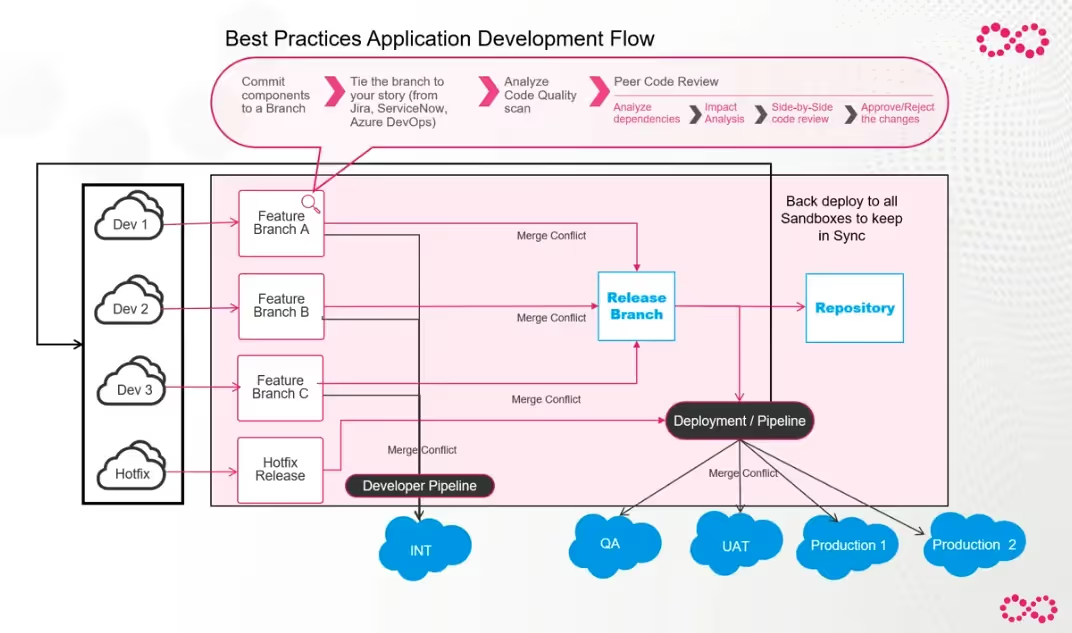
The CI/CD process in Salesforce streamlines the development, testing, and deployment of applications. Five stages run in sequence, each gating the next.
Development
This is the first stage of the CI/CD process, where the applications are developed according to the users' needs. This could involve new features or functionality, bug fixes, integrations, or fine-tuning an already developed Salesforce feature.
Build
In the build, the code is added to the source code repository for integration into the main branch to ensure it works within the developed feature or functionality. In this process, the new code is split into smaller, functional components for easier testing.
Assessment
In this stage, the code or part of the code added to the repository is assessed for quality. Errors, compatibility, and functional flaws are the significant elements tested here. You can also automate the testing process with a variety of testing tools. As a result, the DevOps teams can test the code at every build for faster feedback and corrections.
Security scan
In this step, automatic scanning is done to detect any security vulnerabilities or compromises in the code developed. This helps avoid any compromised code or functionalities being added to Salesforce to keep the platform secure.
Deployment
The code has been developed and green-lit in this stage for quality and security. It is then passed for deployment. Sometimes, human intervention is required to add the code to the customer-facing product. In other cases, such as continuous deployment, it is automated.
How to Build a CI/CD Pipeline with GitHub Actions
GitHub Actions is the most common way teams build a CI/CD pipeline for Salesforce without buying a dedicated platform. The pieces are straightforward: your metadata lives in a GitHub repository, a workflow file defines what runs and when, and hosted runners execute the Salesforce CLI against your orgs.
Store metadata in Salesforce DX source format rather than the older metadata API format, because source format splits components into separate files, which makes diffs readable and code review possible.
Authentication is where most first attempts fail. A GitHub runner has no browser, so interactive login is not an option. The supported pattern is the OAuth JWT bearer flow: generate an RSA key pair, upload the certificate to Salesforce, store the private key and consumer key as GitHub encrypted secrets, and authenticate headlessly at the start of each run.
One important change to plan for: Salesforce disabled the creation of new Connected Apps by default across all orgs in Spring '26 and now steers new integrations to External Client Apps, which also support the JWT bearer flow. Existing Connected Apps continue to work, so an established pipeline will not break, but a pipeline you set up today should be built on an External Client App.
Use the sf CLI (v2), not the retired sfdx CLI. Commands that begin with sfdx force: are deprecated, and most tutorials still online use them.
Workflows are YAML files in .github/workflows. Triggers determine the pipeline's shape: run validation on pull requests targeting your integration branch, and run deployment on merge to that branch. Validation should use a validation-only deploy so nothing commits until the check passes.
Two details save a lot of debugging time. Set fetch-depth: 0 on the checkout step, because delta deployment tools need full git history to calculate a diff. And prefer RunLocalTests over RunAllTests, since RunAllTests also executes managed package tests and can add half an hour to every run for no benefit.
Operational takeaway: GitHub Actions gives you a working Salesforce pipeline cheaply, provided your team is willing to own the YAML and the auth setup that comes with it.
Build Vs. Buy: Should You Buy or Build a Salesforce DevOps Tool?
Many of the tools used to build Salesforce CI/CD pipelines are free or open source, which may tempt you to assemble your own DevOps toolchain. However, it is a decision that will affect your entire organization, teams, and other stakeholders, and the licence cost is rarely the deciding factor.
A hasty decision will do more harm than good to your business. In this section, we will examine each of these approaches in detail to make an informed decision.
Cost of development
Building a Salesforce CI/CD toolset in-house may initially seem cost-effective, since the underlying tools are free. Over time, the cost of maintaining those tools and paying the people who maintain them adds up, and building becomes a more expensive endeavour than it first appeared. The pattern is well documented in large technology projects: a McKinsey study with the University of Oxford, covering more than 5,400 IT projects with budgets above $15 million, found they ran on average 45% over budget and 7% over schedule while delivering 56% less value than predicted. Most in-house pipeline builds are far smaller than that, but the underlying causes, unclear scope and shifting requirements, scale down just as reliably.
Buying a purpose-built tool moves that maintenance burden to the vendor and shortens time to a working pipeline, which is usually where the real return sits.
Efficiency of CI/CD tools
It is unlikely that a DevOps tool built in-house for Salesforce will work with the expected efficiency. As it lacks Salesforce awareness, it will lead your team to intervene heavily to address issues, which will often come up, to ensure efficiency.
That's not the case when you buy a tool designed to work with Salesforce. These tools are built to be Salesforce-aware and integrate with an existing DevOps process rather than requiring one to be scripted from scratch.
Maintenance
Salesforce, like all other systems, needs timely maintenance to ensure better performance, efficiency, and productivity. However, building the Salesforce DevOps tool in-house means more ongoing maintenance.
This is more challenging since Salesforce constantly updates its metadata types and releases platform updates three times a year. You must hire additional dedicated resources and invest more time to meet this requirement.
Buying a Salesforce DevOps tool considerably addresses this issue, as vendors track metadata and API changes as part of their own release cycle. This means low maintenance and more peace of mind.
Technical debt
Technical debt refers to the resources a business wastes to address issues that could have been avoided with better technologies and systems. Building an in-house DevOps tool for Salesforce can constantly throw you into a whirlpool of technical debt you can never escape.
It will also distract you from business as you become preoccupied with maintaining Salesforce DevOps tools to accommodate platform changes. This can lead to inefficiencies and business failures.
Adopting a purpose-built Salesforce DevOps platform saves you from these challenges. Because these tools are built for Salesforce and its unique traits, you stay in control and can focus on growing your business. In-house tools can work at basic levels, but a complex DevOps system tends to outgrow them.
Operational takeaway: build when the pipeline is a differentiator, buy when it is infrastructure, and be honest about which one it is for your team.
Create an Efficient CI/CD Pipeline in Salesforce with Flosum
Pulling the recommendations together: keep every change, declarative and programmatic, in version control; validate against a production-like org before deploying; gate production behind an approval; make rollback a restore rather than a redeploy; and choose tooling that matches the maintenance capacity your team actually has.
A well-designed CI/CD pipeline accelerates the deployment process, improving code quality, minimizing risks, and reducing manual errors. However, setting up a pipeline in Salesforce has challenges, such as customization complexities, integrations, and data compliance. These hurdles make it worth considering a tool that simplifies pipeline creation while maximizing efficiency.
Purpose-built for Salesforce, Flosum integrates into your CI/CD workflow, automating repetitive tasks, supporting compliance, and providing visibility into the development process. With Flosum, teams can focus on innovation and make Salesforce DevOps more streamlined and effective.
Book a discovery call with us today to transform your Salesforce DevOps experience with Flosum for faster, more efficient deployments.
Frequently Asked Questions (FAQs)

Thank you for subscribing