


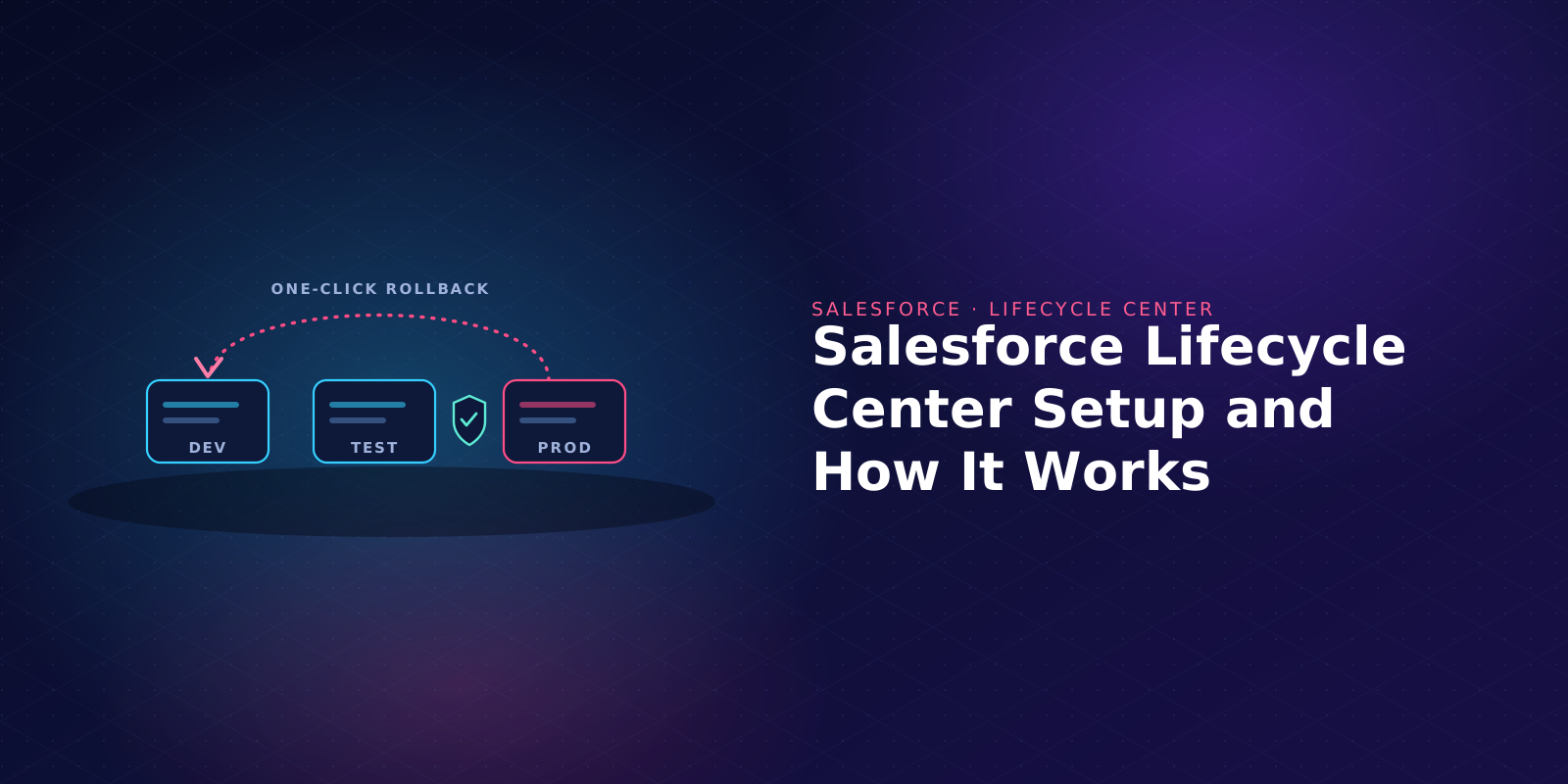
Salesforce Lifecycle Center (formerly DevOps Center) is Salesforce's click-based app for change and release management. It tracks metadata changes and promotes them across your orgs, with Git as the source of truth.
This guide walks through the current Salesforce setup, then explains how the tool works once it's running. It's part of our Salesforce DevOps guide.
Lifecycle Center is already on in supported orgs, so you open it from the App Launcher in a production or hub org. You add your team, assign permission sets, and prepare a GitHub or Bitbucket Cloud repo. Then you create a project, build a pipeline that maps your orgs to stages, and promote your first work item to production.
We've written this from the release manager's side. The steps follow Salesforce Help, and the tips flag the snags that usually stall a first setup.
What is Salesforce Lifecycle Center?
Lifecycle Center replaces change sets and manual deploys with a source-driven workflow. Your Git repository becomes the single source of truth for metadata, though not for business data.
It's built for admins, developers, and release managers who used to move changes between orgs by hand. You point and click to define environments, track changes as work items, and promote them toward production.
Branching and merging happen underneath. A team can adopt a source-driven release process without everyone living in the command line.
Next-gen vs the managed package
There are two versions, so check which one you're on before you follow any steps. The current version is built into the platform, so there's nothing to install.
The original managed package still runs where it was installed. But Salesforce says that starting in April 2026, new downloads and installs of the package are no longer supported.
Use one or the other, never both. Salesforce recommends disabling the managed package before you use Lifecycle Center.
If you're starting today, carry on with the next section. If you're keeping the package for now, skip to the legacy section.
Still deciding whether a free tool is the right long-term home for your releases? Our four-way comparison covers Copado, Flosum, and Gearset too. For more options, see Lifecycle Center alternatives, our roundup of Salesforce DevOps tools, and version control without Git.
Prerequisites (before you start)
Get these in place first. Missing one of them is the usual reason a setup stalls halfway. The requirements below come from Salesforce's setup considerations.
Two of these trip people up. The first is the hub org: it has to be production or a dedicated non-sandbox org, because your sandboxes become pipeline stages rather than the home of the tool.
The second is source tracking. It's what notices a metadata change in a dev sandbox and surfaces it for you to commit. Without it, changes still work, but someone has to add them by hand.
Salesforce Setup: How to set up Lifecycle Center step by step
This is the current Salesforce setup flow. Work through it in order in your hub org.
Step 1: Open Lifecycle Center from the App Launcher
Lifecycle Center is enabled by default, so you don't turn it on. Open the App Launcher, search for Lifecycle Center, and open the app.
The first time, you'll be asked to accept the DX Tools terms and conditions. That one agreement also covers Agentforce Vibes IDE and DX Inspector, so accept it before your developers try to connect.
Release manager tip: opening the app needs the View All Data permission. If someone can't see Lifecycle Center in the App Launcher, check that before anything else.
Step 2: Add your team as users in the hub org
Decide who needs access. That's usually the developers who build changes and the release managers who review and promote them.
Each person needs an active user in the hub org. They also need to be users in the release and development environments they'll deploy to.
Step 3: Assign the Lifecycle Center permission sets
Access comes from permission sets rather than profiles. Assign them in Setup under Permission Sets:
- Lifecycle Center User: the base set for everyone, admins included. It covers pipelines and work items.
- Lifecycle Center Admin: sets up projects, environments, and users.
- Lifecycle Center Deployment Manager: promotes changes through pipeline stages.
- Lifecycle Center Testing Manager: configures test providers, test suites, and quality gates.
A fifth set, Access Lifecycle Center Named Credentials, is created and maintained automatically and goes to all users. You only manage the four sets above.
Release manager tip: decide early who can promote. Keeping Deployment Manager to a small group is the simplest control you have over what reaches production.
Step 4: Prepare your source control (GitHub or Bitbucket Cloud)
Lifecycle Center works with GitHub.com cloud plans, including GitHub Enterprise Cloud, or Bitbucket Cloud. Self-hosted GitHub, GitLab, and Azure DevOps won't connect.
Each pipeline needs its own repository, structured as a Salesforce DX project with an sfdx-project.json file at the root. Lifecycle Center can create that repo for you when you build the pipeline, or you can use an existing one.
Give every team member a Git account and access to the repo. GitHub authorizes through OAuth, using a Salesforce-owned app called Salesforce DX.
Release manager tip: repos owned by a GitHub organization stay invisible to Lifecycle Center until an org owner approves access. For example, if your Salesforce repo lives under your company's GitHub organization, it won't appear in the repository list on setup day unless an owner has already approved the Salesforce DX app, so request approval the week before.
Turn on branch protection for main, staging, and integration too. That way, stage branches aren't deleted after a merge.
Step 5: Create a project
A project is the workspace where your team manages changes for an app or customization. Each project is tied to a single pipeline.
From the Projects tab, click New, give it a clear name and description, and save. You can link the pipeline now or after you build it.
Step 6: Build your pipeline
A pipeline is the sequence of stages work items travel through, and each stage maps to one org and one branch. From the Pipelines tab, name the pipeline, pick your source control, and create or select the repo.
The default pipeline includes Integration, UAT, and Staging stages between development and production. Connect a release environment (usually production) and at least one development environment. Then choose a branch for each stage and click Activate Pipeline.
Release manager tip: plan the stage list on paper first. Salesforce warns that you can't modify a pipeline after you've promoted changes through it. For example, if you launch with Integration, UAT, and Staging and later want a separate performance-testing stage before production, you can't add it to the live pipeline.
Step 7: Configure your .forceignore file
The .forceignore file tells the tooling which metadata to leave out of tracking and deployment. Use it for environment-specific settings or noisy metadata that shouldn't travel between orgs.
Set it up before the first commit. It keeps commits clean and saves you surprises at promotion time.
Step 8: Create and assign your first work item
A work item is the unit of change. From the Work Items tab, click New, pick the project, and describe the change and its acceptance criteria.
Assign it to a developer and, optionally, a development environment. Click Move to In Progress, and Lifecycle Center creates a feature branch for it. From then on, changes in that sandbox are tracked against the work item.
Step 9: Connect an IDE for developers (optional)
Admins can run the whole flow in the Lifecycle Center UI. Developers who prefer code have two extra routes.
The first is DX Inspector, a bar at the top of a sandbox, scratch org, or Developer Edition org. From it, a developer can track changes, create work items, commit, and open reviews without leaving Salesforce.
The second is an IDE. Salesforce recommends Agentforce Vibes IDE for its Lifecycle Center MCP tools, and its MCP setup steps say you can also use VS Code (with the Copilot MCP client), Cursor, or Claude Desktop. These MCP tools may consume paid credits.
Common setup errors and how to fix them
Most first-setup errors come from source control access, expired org credentials, or the wrong test level. These four come from Salesforce's troubleshooting guide and the Lifecycle Center known-issues log.
A work item won't move to In Progress
Moving a work item to In Progress creates its feature branch, so Lifecycle Center needs write access to the repository. Check the source control connection status on the Home tab and reconnect if prompted. Then confirm that the developer's Git account can push to the repo.
The repository returns a 403 or IP allowlist error
If your GitHub or Bitbucket account restricts access by IP address, the repository owner has to allowlist Lifecycle Center's current IP ranges. Don't reuse the managed package's IP addresses, because Lifecycle Center runs on different infrastructure.
A pipeline environment opens a login page
When you select a pipeline environment and land on a login page, the stored credentials for that org have usually expired. Log in to the target environment from the pipeline to refresh them, then retry the promotion. Salesforce suggests contacting Support only if the redirect loop continues after you log in.
A production promotion fails with a NoTestRun error
If you promote to production with the Default Apex test option, the deployment fails with "testLevel of NoTestRun cannot be used in production organizations". The workaround in the known-issues log is to select Run Local Tests instead, so set that option before your first production release.
Setting up the legacy managed package (if you already have it)
Use this section only if your org installed the managed package before the April 2026 cutoff and you're keeping it for now. The managed-package setup runs in this order:
- Enable the DevOps Center feature (managed package only).
- Install the managed package into your production or hub org (administrators only).
- Enable source tracking so sandbox changes are detected.
- Create the connected app (now an external client app) that authorizes the Git connection.
- Assign the permission sets to your team.
- Create a project.
- Connect GitHub to the project.
- Connect your environments, both sandboxes and production.
- Activate the pipeline.
The concepts match the current version. What differs is the install and connected-app work up front, which the current version removes.
Salesforce offers a migration tool for moving managed-package projects across, currently labeled Developer Preview. Plan the move as its own small project, with time to test, rather than an overnight switch.
How does Salesforce Lifecycle Center work?
Setup is only part of the picture. This section covers the model underneath it.
Work items
A work item records the metadata changes for one task or requirement, much like a ticket. You don't list components by hand: Lifecycle Center detects what changed in the dev sandbox and you choose what to commit.
As you commit, review, and promote it, the work item moves through six statuses. Lifecycle Center updates the status for you at each step:
The pipeline
The pipeline is a linear sequence of stages, and each stage pairs one org with one branch. A change starts in a dev sandbox and moves through the stages you defined.
Because a stage is an org plus a branch, promoting a change is a Git merge and a deployment at the same time. The layout follows a common Salesforce branching strategy, with one branch per stage:
- Stages: Dev sandbox -> Integration -> UAT -> Staging -> Production
- Branches: Feature branch -> Integration branch -> UAT branch -> Staging branch -> Main branch
That linear design is deliberate. Changes flow one way, stage by stage, which keeps a single stream of work easy to follow and audit.
Source control as the single source of truth
Your Git repository, not any one org, holds the authoritative version of your metadata. A developer commits the chosen components to the work item's branch, and that branch becomes the record of the change.
This is the main break from change sets. Instead of rebuilding a change set for every org, you commit once and let the pipeline carry the change.
How to promote a change through your pipeline
Promotion is the day-to-day motion of Lifecycle Center. Here's one change, from a developer's edit to production.
- Make the change in a dev sandbox linked to a work item.
- Let Lifecycle Center detect it. Source tracking surfaces the changed metadata against the work item.
- Commit the components you want to the work item's branch, with a commit message.
- Open a review. Creating the pull request moves the work item to In Review.
- Promote. Choose Promote now to merge into the next stage's branch and deploy, or Validate only to check the deployment first.
- Repeat for each stage until the work item reaches production.
The promotion options also let you pick which Apex tests run. If a deployment fails, Lifecycle Center doesn't finalize the merge, so every branch stays as it was.
You can promote work items one at a time or together. If you've set up test suites and quality gates, they run before the promotion completes.
Release manager tip: use Validate only on your production stage for anything with Apex. It runs the deployment checks and tests without saving to the org, so you find failures before the release window rather than during it.
When you outgrow Lifecycle Center
Lifecycle Center is a good starting point. Salesforce describes it as free with supported editions, and it handles a single stream of work moving cleanly to production. Our guide to Lifecycle Center costs covers the Git seats and hours around it.
It strains in predictable places. Moving a promoted change back to an earlier stage is a known issue, so a bad release means manual recovery. Each project has one pipeline, and source control stops at GitHub.com and Bitbucket Cloud.
Governance policies are still pre-release and apply to coding-agent actions rather than human promotions. Backup isn't part of the tool either, so release work and data backup automation end up in separate products. Flosum Backup & Archive covers that side, protecting data, metadata, and files with granular restore.
Teams in finance, healthcare, and the public sector tend to meet all of these at once, usually when change volume climbs and auditors arrive. Our breakdown of Lifecycle Center limitations goes through each one.
Flosum DevOps adds one-click rollback, multi-level approvals, and audit trails, with Git optional. It runs Salesforce-native, Flosum-hosted cloud, or customer-hosted, and our enterprise DevOps page covers larger programs.
FAQs
Want to see it on your own release process? Book a personalized demo to see how Flosum can add rollback, approvals, and audit trails to the pipeline you've just set up.

Thank you for subscribing